

The fastest, safest step-by-step walkthrough is via ChainList or manual setup. Follow our guide and use the screenshots for every step.
Bitgert Network Details
Before you start, here are the verified Bitgert Mainnet parameters. You will need these for the manual setup method.
| Parameter | Value |
|---|---|
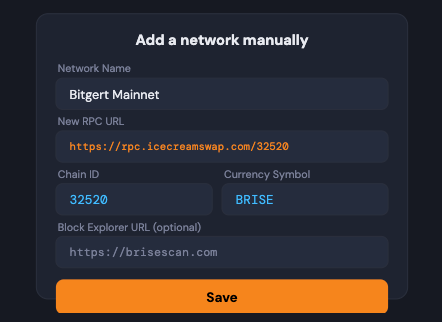
| Network Name | Bitgert Mainnet |
| Chain ID | 32520 |
| Currency Symbol | BRISE |
| RPC URL | https://rpc.icecreamswap.com/32520 |
| Block Explorer | https://brisescan.com |
Security tip: Always verify these parameters against the official ChainList page for Bitgert before entering them manually. Entering an incorrect RPC URL can prevent the network from loading — and phishing sites sometimes mimic configuration pages to steal seed phrases.
Method 1: Add Bitgert via ChainList (Recommended)
ChainList is a trusted open-source directory of EVM networks maintained by DefiLlama. It lets you add Bitgert in a single click without typing anything manually — eliminating typos and saving time.
Step 1 – Open MetaMask and make sure it’s unlocked
Click the MetaMask fox icon in your browser toolbar. If locked, enter your password. This works in both the browser extension and MetaMask mobile. MetaMask Unlock Wallet 1. Click the MetaMask icon and unlock it.

Step 2 – Go to chainlist.org
Navigate to chainlist.org in your browser. Make sure the URL is exactly right — bookmark it to avoid phishing copies.
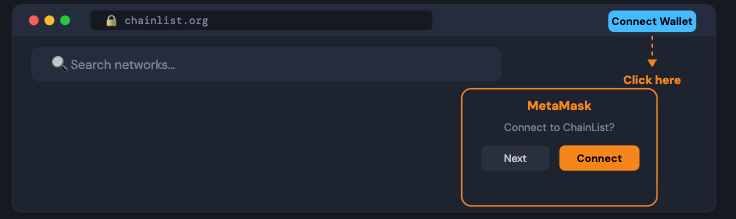
Step 3 – Connect your wallet to ChainList
Click “Connect Wallet” in the top-right corner. MetaMask will pop up asking for permission — click “Next” then “Connect”.
Step 4 – Search for “Bitgert”
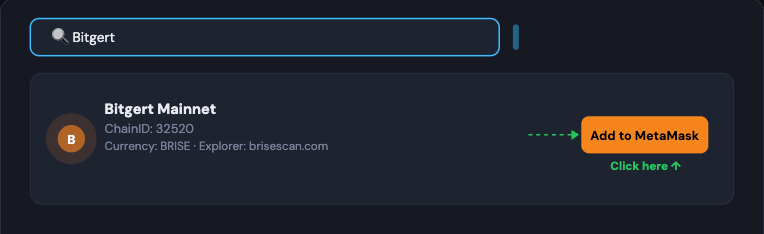
Type Bitgert in the search bar. The Bitgert Mainnet card (Chain ID: 32520) will appear in the results.
Step 5 & 6 – Approve and Switch Network
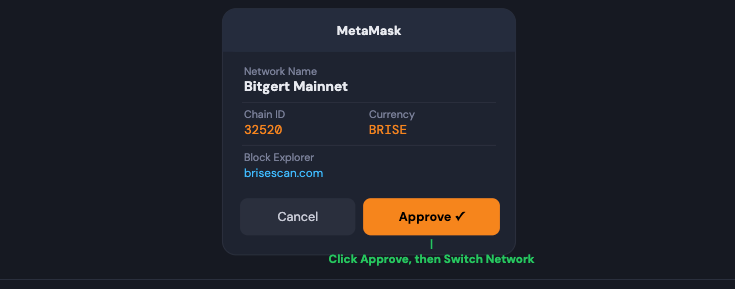
MetaMask will display a confirmation popup with the network details. Review them, click “Approve”, then click “Switch Network” to activate Bitgert immediately.
Done! Bitgert Mainnet will now appear in your MetaMask network dropdown. You’re ready to send BRISE and use Bitgert dApps.
Method 2: Add Bitgert Manually to MetaMask
Use this if ChainList is unavailable or you prefer direct control over your RPC provider.
Step 1 – Open the network selector
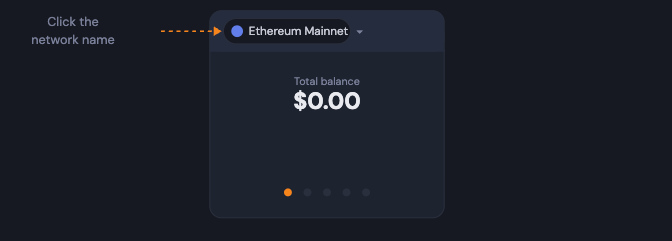
Click the network dropdown at the top of your MetaMask wallet (it shows your current network, e.g. “Ethereum Mainnet”).
Step 2 – Click “Add Network”
At the bottom of the network list, click “Add Network”, then choose “Add a network manually”.
What is RPC? Think of the RPC URL as the phone line between MetaMask and the Bitgert blockchain. It tells your wallet which server to contact when checking your balance or sending transactions. Using a reliable RPC ensures fast, uninterrupted access.
Adding Bitgert on MetaMask Mobile
The process on the MetaMask mobile app (iOS and Android) works the same way:
Mobile – Via the app settings
Tap the hamburger menu (three lines, top-left) → Settings → Networks → Add Network → “Add a Network Manually” → enter the Bitgert parameters → tap Add.
Mobile – The Easiest is Via ChainList in the built-in browser
Open the built-in browser inside the MetaMask mobile app, go to chainlist.org/chain/32520, and tap “Add to MetaMask”. It connects directly to your mobile wallet.
Troubleshooting Common Issues
❌ “This Chain ID is already in MetaMask”
Bitgert is already saved. Open the network selector, find Bitgert Mainnet, and switch to it. No need to add it again.
❌ “Could not fetch chain ID” or RPC error
The RPC server may be temporarily down. Visit chainlist.org/chain/32520 and pick a different RPC provider from the list. There are usually 5–10 available for Bitgert.
❌ Network added but balance shows zero
Your BRISE tokens exist on-chain — MetaMask needs a moment to sync. Wait 30 seconds and refresh. Double-check you’re on Bitgert Mainnet (not a testnet) and viewing the correct wallet address.
❌ ChainList is down or inaccessible
Use the manual setup method with the parameters in the table above. Cross-reference the Chain ID (32520) and RPC URL with BriseScan’s footer or Bitgert’s official documentation.
❌ I need to remove or reset the network
MetaMask → Settings → Networks → find Bitgert Mainnet → click the three dots → Delete. Then re-add using the correct parameters from this guide.
What Is Bitgert Chain?
Bitgert is a Layer 1 blockchain using a Proof of Authority (PoA) consensus mechanism. This enables extremely high throughput — over 100,000 transactions per second — with near-zero gas fees (as low as $0.0000001 per transaction), making it one of the cheapest networks for on-chain activity.
Because it is EVM-compatible, any Ethereum tool, wallet, or smart contract works on Bitgert without modification. The trade-off of PoA is reduced decentralization: validators are known, trusted entities rather than anonymous miners. For users primarily seeking fast, cheap transactions, this is generally acceptable.
Once Bitgert is in your MetaMask you can swap tokens on IceCreamSwap (the leading Bitgert DEX), provide liquidity, bridge assets to other chains, trade NFTs, and stake BRISE for passive rewards. To verify your setup is working, paste your MetaMask address into brisescan.com — any balance or activity will appear there immediately.
Frequently Asked Questions
Is it safe to add Bitgert to MetaMask?
Yes. Adding a custom network does not grant that network access to assets on other chains. Your ETH and BNB stay safe. Only use chainlist.org or the parameters in this guide, and never enter your seed phrase during the process — it is never required.
Can I use the same MetaMask address on Bitgert?
Yes. Your MetaMask address is the same across all EVM-compatible chains. The assets on each chain are separate, but the address is identical.
How do I get BRISE tokens?
Buy BRISE on a centralized exchange and withdraw it to your MetaMask Bitgert address, or bridge compatible tokens to Bitgert using an available bridge.
What is the difference between ChainList and adding manually?
ChainList automatically fills in all parameters, reducing the chance of errors. Manual setup gives you control over which RPC server you use. Both result in identical network configurations.
Does MetaMask charge a fee to add Bitgert?
No. Adding a network is free. Gas fees are only charged when making transactions on that network — and Bitgert’s fees are fractions of a cent.
Are there alternative RPC providers for Bitgert?
Yes. ChainList lists multiple RPC providers for Bitgert (Chain ID 32520). If one is slow or unresponsive, you can switch to another from within MetaMask’s network settings or re-add the network via ChainList with a different provider selected.